-
What do public date, group booking, public date or group booking, and multi-date event mean?
-
Course, experience, tour, or DIY box – how do I choose my specialization?
1) What types of requests are there at konfetti?
Here you can see the two ways requests are sent to you.
1. Website Requests
- Come through the event page on konfetti
- Appear in the partner portal under Date Requests & Waiting List (mostly individual participants / small groups)
2. Private Events Team
- Come through our Private Events Team
- You will be contacted personally via email
2) Sales 101: How do I get more bookings?
- Offer more courses – expand your portfolio & use best practices
- Use the AI import feature – quickly and efficiently create SEO-optimized courses yourself
- Add many dates – significantly increases your visibility and sales
- Strong images & short videos – increase click-through rate and trust
- Choose market-appropriate prices – don’t price too high, feel free to work with add-ons
- Use your own promotional campaign – as a targeted marketing action
- Book a marketing cooperation – for additional reach
- Collect reviews – increase conversion and trust
- Optimize titles – better to use “near + major city” instead of an unknown location
Example:
If a request for 10 tickets is submitted and it is set to Public, your confirmation will create a public event with 10 individually bookable tickets on the konfetti website.
Therefore, always check the setting carefully before accepting the request. During the review step, you can select the “Private” option from the dropdown menu.
No longer interested in the date?
If, for example, no booking has been made after one week and you no longer want to offer the date, you can simply deactivate it in the Date Manager.
5) Does a request = a confirmed booking?
No. Booking requests are non-binding.
They only show a customer’s interest — the date is not yet firmly booked.
For data protection reasons, you will not receive the customer’s email address at the request stage. The email address will only be shared with you after a binding booking has been made.
You can find all confirmed bookings in the partner dashboard under “Orders”.
Please note: There is no integrated messaging tool in our portal. If you would like to contact the customer, copy the email address provided in the order and send them a short email directly.
6) How to correctly create and delete dates
Create new dates
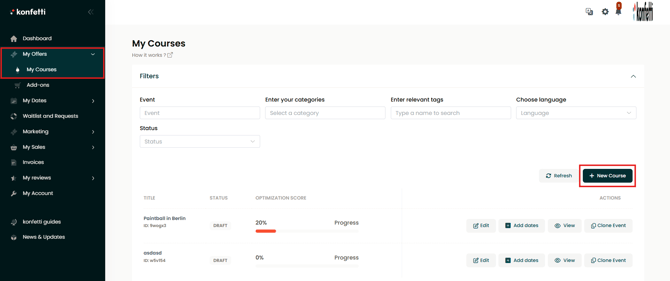
Always create new dates directly within the respective course:
-
Go to “My Offers” → “My Courses” in the menu
-
Select the course and click “Edit”
-
Enter the date, time, and available spots in the date form
-
Save
Edit or deactivate dates
For adjustments or if you no longer want to offer a date:
- Go to “My Dates” → “Date Manager” in the menu
- Select the date. Feel free to use the filter functions
- Remove the checkmark for “Publicly bookable”
- Save
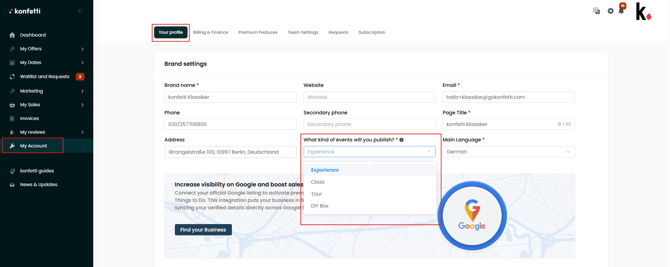
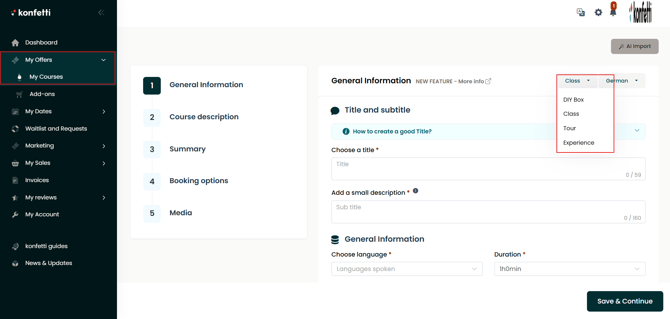
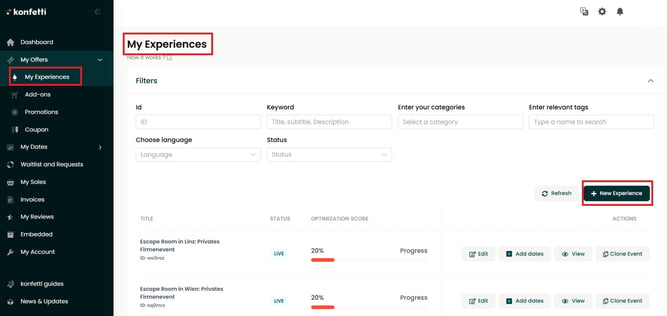
7) Course, experience, tour, or DIY box – how do I choose my specialization?
1. What specializations are available?
Course
Definition:
A structured, often educational event where participants actively acquire knowledge or skills.
Characteristics:
- Goal-oriented learning or practice
- Structured content and a clear process
- Guidance from an expert or trainer
- Active participation and interaction
- Often connected to a learning goal or certification
Examples:
Cooking class, cocktail course, photography workshop, yoga workshop
Experience
Definition:
An event or activity primarily focused on personal enjoyment, discovery, or memorable experiences.
Characteristics:
- Focus on emotions, entertainment, or unique experiences
- Less focused on structured learning
- Often one-time or extraordinary activities
- Can take place individually or in groups
Examples:
Wine tasting, escape room, tasting event, alpaca hike
Tour
Definition:
A guided activity where participants explore specific locations or dive deeper into certain topics under the guidance of an expert.
Characteristics:
- Thematic focus: concentration on specific interests such as cultural, culinary, or historical topics
- Interaction: opportunity to ask questions and receive direct feedback from the guide
- Group experience: often conducted in groups, encouraging interaction among participants
Examples:
City tour, city rally, puzzle tour, graffiti tour
Kit
Definition:
A package containing all necessary materials and instructions to independently complete a specific project or experience at home.
Characteristics:
- Independence: allows users to complete activities at their own pace and according to their preferences
- Variety: ranges from culinary experiences and creative craft projects to wellness applications
- Flexibility: can be used anytime and anywhere without being tied to fixed dates or locations
Examples:
Dinner box, DIY set