
Use the Date Manager to Manage Your Dates
- View and filter dates
- Adjust ticket availability
- Deactivate or reactivate dates
- What are the benefits of the vacation blocker?
- Where can I find the vacation blocker?
- How do I set up a vacation blocker?
1) View and Filter Dates
The Date Manager gives you a complete overview of all dates created for your offers — whether tours, experiences, or courses. You can also filter by offer name and date to quickly find a specific date.
At a glance, you can see:
- Which dates are currently bookable
- Whether dates are active or inactive
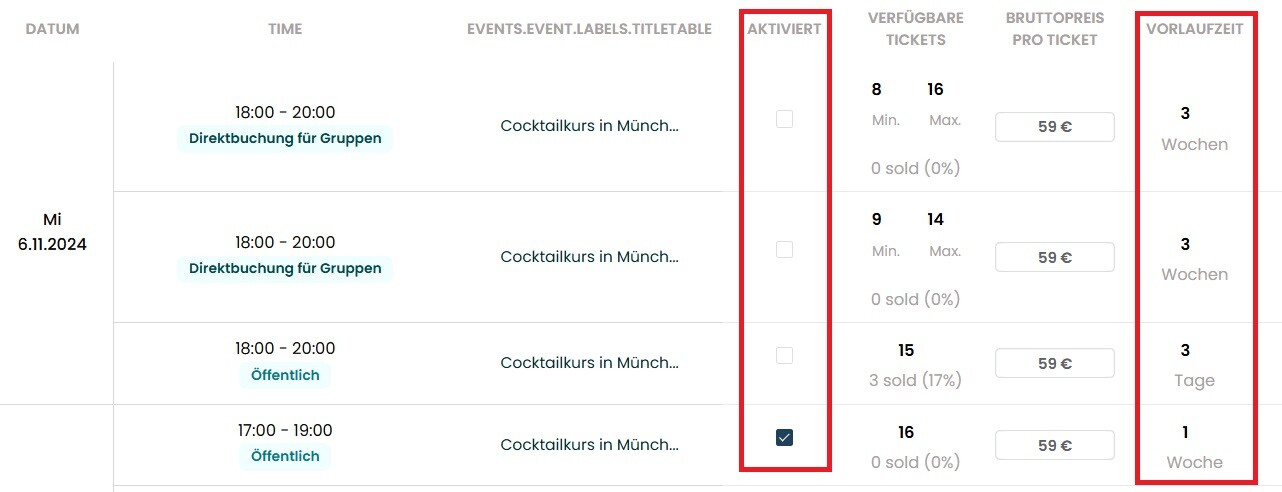
- How many tickets have already been sold and how many are still available

- Which type of date it is (e.g. single date or recurring date)
Here you can learn everything important about the different date types.
Note:
The booking lead time determines how far in advance a date can still be booked. For example, if you need three days for preparation, set a lead time of 3 days — after that, the date will automatically be deactivated.
2) Adjust Ticket Availability
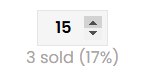
If you also sell tickets through other channels (e.g. on-site or through your own website), you can update the available ticket contingent in the Date Manager at any time.
Use the small arrows next to the ticket quantity (up/down) and then save your changes. This helps reliably prevent overbookings.
3) Deactivate or Reactivate Dates
Do you no longer want to accept bookings for a specific date? Then deactivate it with one click:
- Simply remove the checkmark in the “Activated” column
- The date will no longer be bookable immediately
- You can of course reactivate it again later
- Don’t forget to save your changes afterward
Important:
If you need to cancel a date, please deactivate it and additionally follow the process for rebookings and cancellations.
4) Benefits of the Vacation Blocker
Important:
A vacation blocker blocks the dates of all your offers during the selected time period.
Benefits:
- No double bookings during your absence — avoid accidental bookings while you are unavailable
- Save time by updating all affected dates at once instead of editing them individually
- A more accurate and stress-free calendar that always reflects your real availability
- Better planning reliability for you and your participants
- Flexible use for full days or only specific time slots
Tip:
You can create multiple vacation blockers if you are unavailable at different times.
5) Where Can I Find the Vacation Blocker?
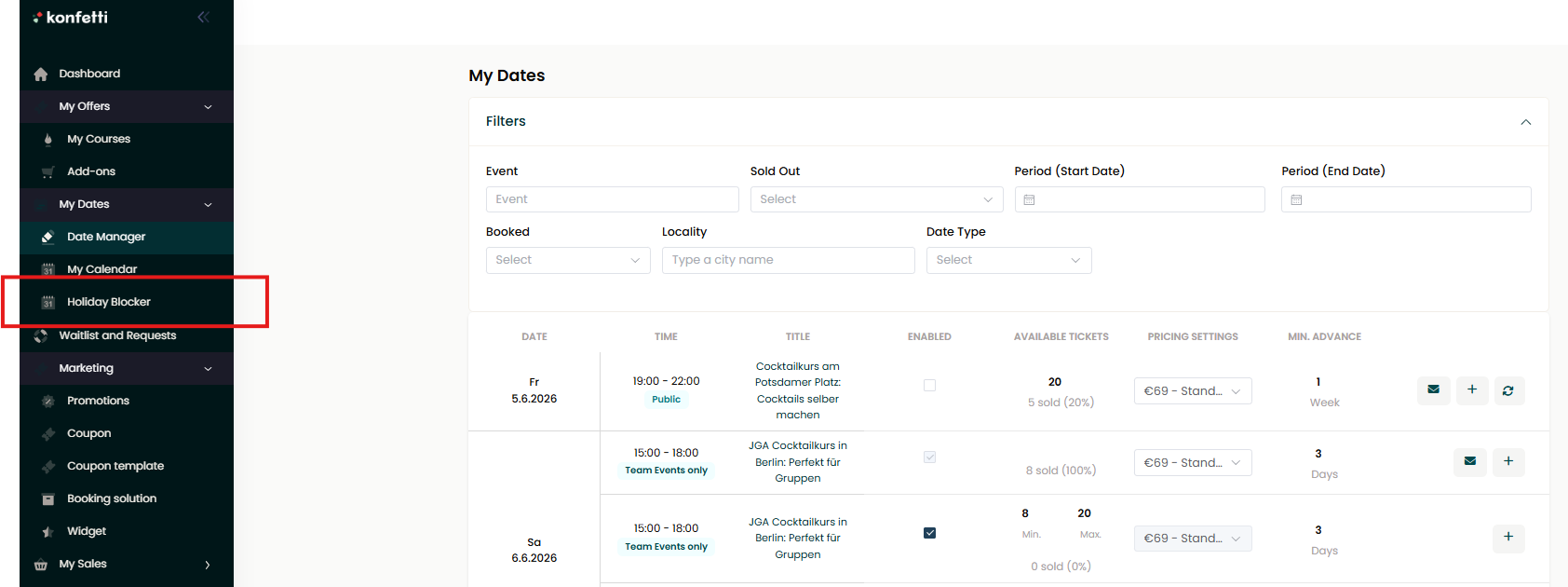
- Log in to your partner area
- Go to “My Dates” in the left menu
- Select the submenu “Holiday Blocker”
6) How Do I Set Up a Vacation Blocker? Create a Vacation Blocker
- Click the button “Create Vacation Blocker”.
- Enter a Title
- Enter a unique name for your vacation blocker, e.g. “Summer Vacation” or “Christmas Break”.
- The title is only visible to you and helps you keep track of your absences.
- Define Start and End Date
- Select the start date and end date of your absence in the calendar.
- Set the Time Period
If you do not want to block the entire day, you can define a specific time range using the “From” and “To” fields.
- Full day: Activate the toggle if you want to block the entire day.
Save
Click “Save Blocker” to apply the selected period.
Your offers will now automatically no longer be bookable during this time period.