
Here you will find all topics related to course creation
- How can I add courses using the AI import?
- How can I edit courses?
- What is the course status?
- What is the optimization factor?
- How can I offer mobile courses?
1) Add courses
If you want to add a new course, you can do this via:
- the Dashboard and “Add course”, or
- via “My Offers” and “My Courses” in the side menu and “New Event”
You are also welcome to use our AI Import feature in the course form. This creates a new course in 20 seconds already SEO-optimized.
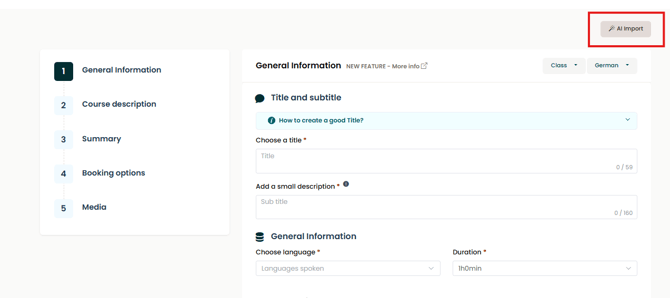
A detailed guide for creating courses can be found here.
2) Course editing
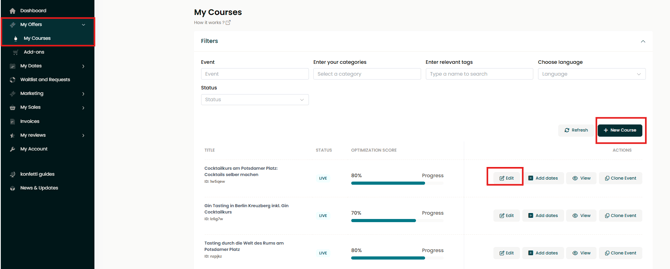
- In the partner portal, go to “My Offers” and “My Courses” in the left-hand side menu.
- Here you will find all your courses and can edit them.
- Select the course you would like to modify and click “Edit”.
- Don’t forget to save every change.
- The changes will be reviewed, approved, and then published by us. This process takes no longer than 12 hours.
3) What is the course status?
You can find the course status in the top right corner of your course editing page.
Simply click on “Manage Courses” and select the course you would like to edit.
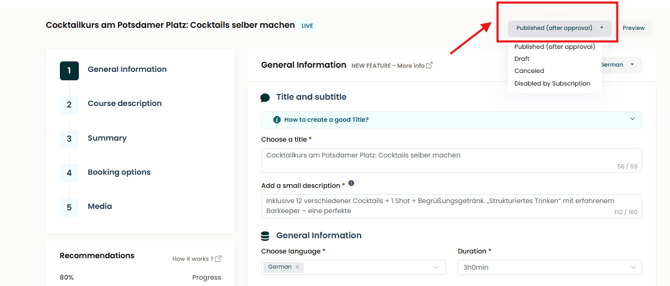
Draft
When you create your course, it is initially saved as a “Draft”. Your course should remain in this status while you are still editing it. You can continue working on it at a later time.
❗ Don’t forget to save after each step!
As long as your course is saved as a draft, it will not be published by us.
Published (after review)
Once you have completed editing your course and saved it finally, your course will be published.
However, it will first go through a review and approval process in our system. During this process, we pay special attention to SEO optimization.
We review courses daily so that your course can be published and booked by customers as quickly as possible.
Cancelled
If you no longer want to offer your course, you can set the status to “Cancelled”.
Your course will then be removed from our system and taken offline. It will no longer appear on the website and can no longer be booked.
💡 Please note: If you only want to cancel a single date, you do not need to change the course status. Instead, you can simply deactivate that date in the course editing section or in the date manager.
4) What is the optimization factor?
This feature is designed to help you improve your offer and therefore increase the ranking of your courses. A high optimization factor increases the likelihood that your courses will be seen and booked on our platform.
Where can you find the optimization factor?
- On your Dashboard (partner area)
- In the course management section
- In the editing area of each individual course
Which parameters influence the optimization factor?
- Available dates, public dates, recurring dates, and group appointments
- At least 5 images and 1 video
- A course description with at least 200 words
5) How can I offer mobile courses?
If you would like to offer your course not only at your own location, but also at the customer’s location, you can now activate this setting for your courses.
The customer can then choose directly in the date request whether the course should take place at your location or at their own location.
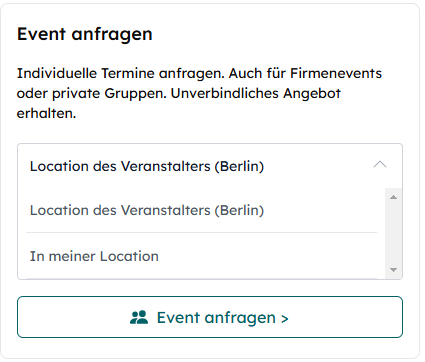
You can activate this setting as follows:
- In your partner account, go to “Manage Courses” via the left-hand side menu.
- Open the relevant event using “Edit” and go to step 1, “General”, in the course editing section.
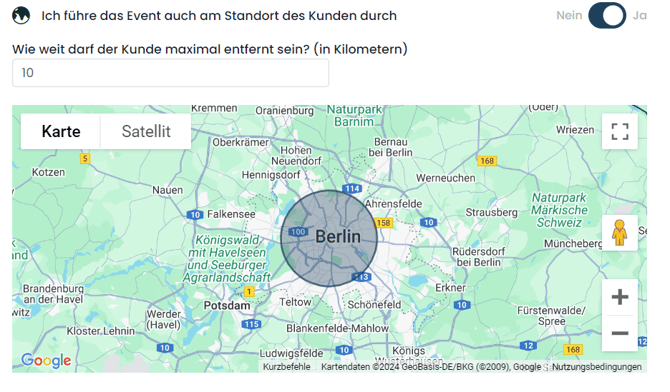
- Scroll almost to the bottom of the page to the section “I also offer the event at the customer’s location”.
- Set the toggle to “Yes”.
- Enter the maximum number of kilometers the customer may be away so that no additional costs are added to the course price.
- Save your changes. These will be applied directly to the website.
If you would like to offer your course not only at your own location, but also at the customer’s location, you can now activate this setting for your courses.
The customer can then choose directly in the date request whether the course should take place at your location or at their own location.