Keep your booked events automatically updated
You can subscribe to your konfetti calendar and automatically display all booked event dates in Google Calendar or Apple Calendar. This helps you keep track of upcoming bookings and manage your schedule more efficiently.
- First step
- How do I sync my event dates with Google Calendar?
- How do I sync my event dates with Apple Calendar?
1. First Step
Before connecting your calendar, you need to copy your personal calendar URL.
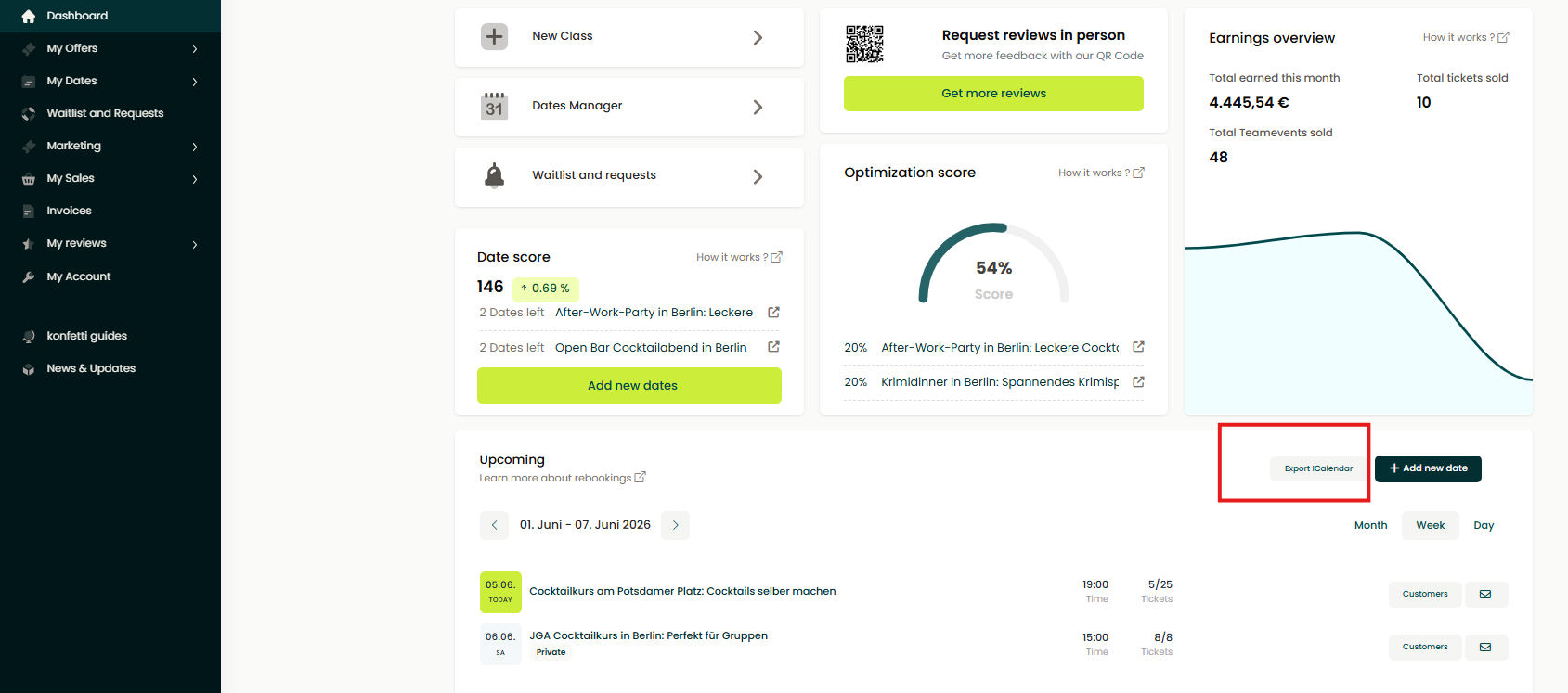
- Log in to your Partner Portal.
- Open your Dashboard.
- Click "Export iCalendar".
- Your personal calendar URL will automatically be copied to your clipboard.
You can now use this URL to subscribe to your booked event dates in your preferred calendar application
2. How do I sync my event dates with Google Calendar?
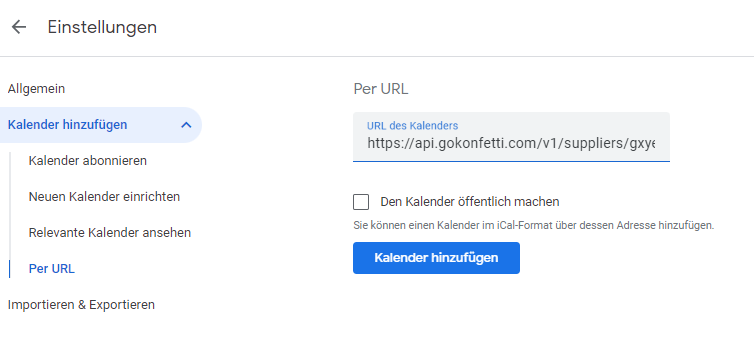
- Open Google Calendar.
- Go to Settings and select "Add calendar" → "From URL."
- Paste the copied calendar URL.
- Click "Add calendar."
- Your booked event dates will now appear in your calendar.
Managing the calendar
You can hide or remove the calendar at any time:
- Uncheck the calendar in the calendar list to hide it temporarily.
- Remove the calendar completely via the calendar options menu.
-png.png)
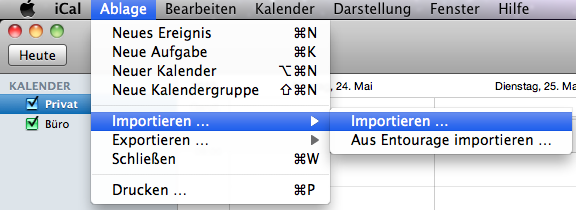
3. How do I sync my event dates with Apple Calendar?
- Open Apple Calendar.
- Select File → New Calendar Subscription.
- Paste the copied calendar URL and click "Subscribe."
- Choose the calendar where the events should be added.
- Click "OK" to complete the setup.