Delete and deactivate Dates
1) Deactivate Dates & Vacation Blocker
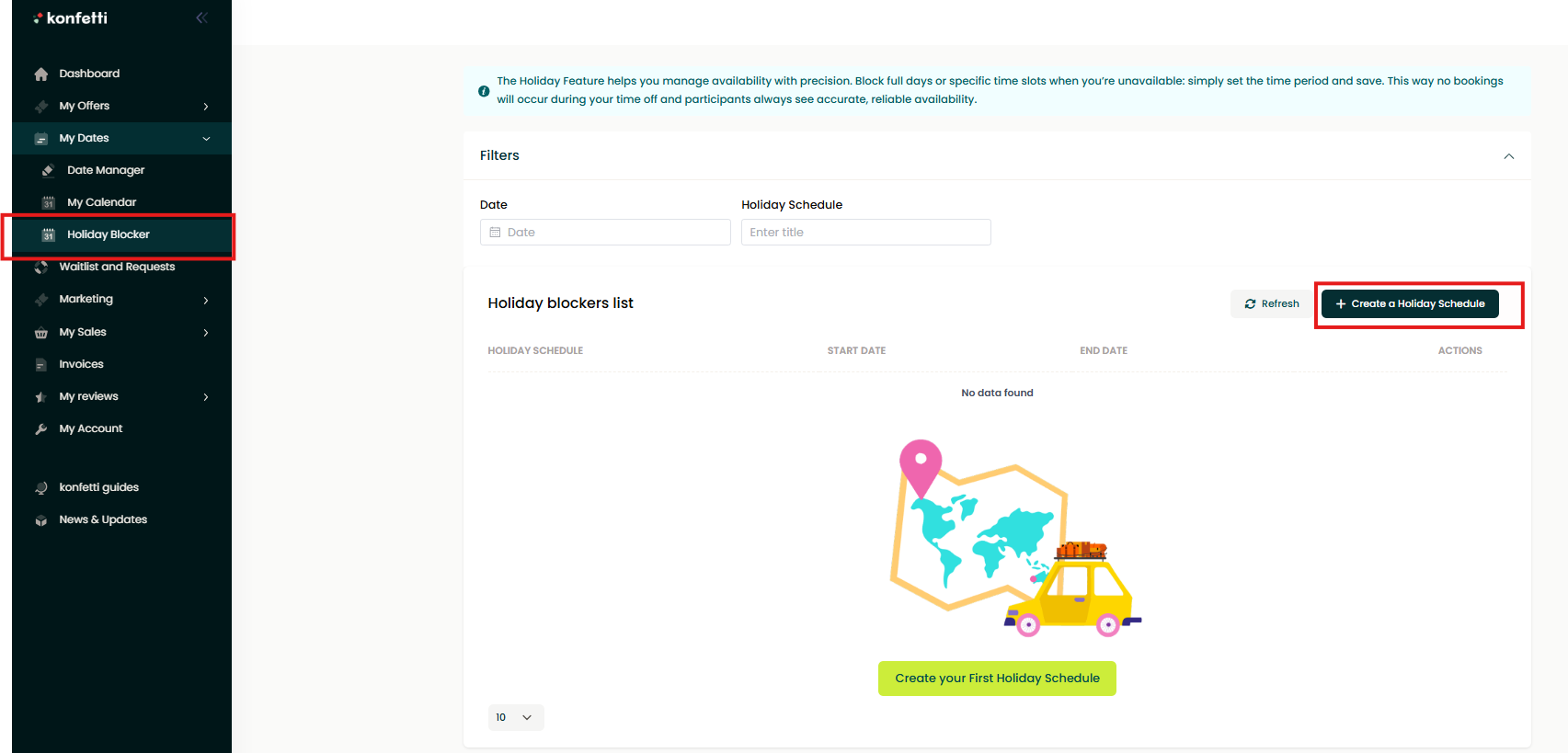
You can deactivate dates via the Date Manager, course editing, or the Vacation Blocker.
- Go to Your partner profile.
- In the menu on the left, You will find Your “Date Manager”. You can filter by:
a. Class title
b. Sold out: yes / no
c. Start and end time
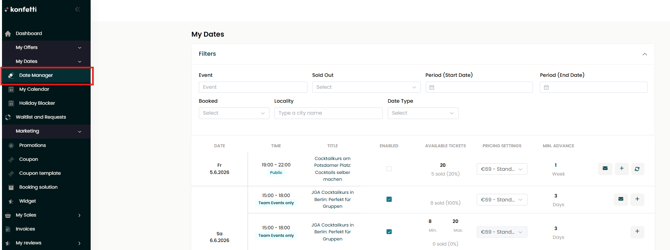
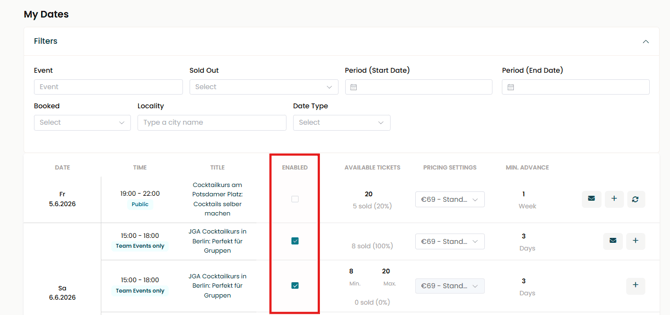
- In Your Date Manager, You can not only add new dates, but also edit existing ones, e.g. the number of available tickets, the gross price, etc. You can also deactivate dates.
- To do this, click on the checkmark in the “Active” column. The date will then be deactivated and can no longer be booked. You can reactivate the date at any time by clicking the box again. Don’t forget to save Your changes!
About Editing Events
- Go to Your partner profile and click on “Manage Events”.
- Open the respective class via the “Edit” field.
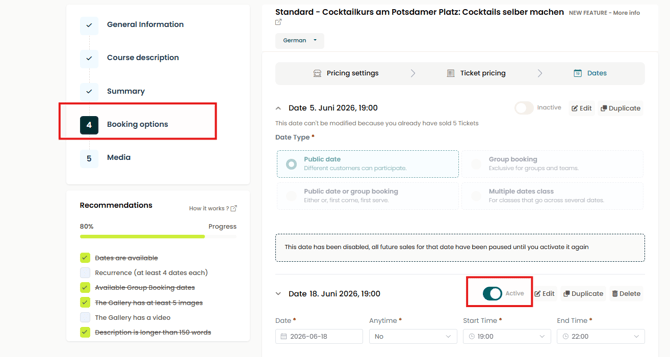
- Go to step 4: “Booking Options”.
- Here, You can deactivate individual dates using a toggle switch. Don’t forget to save Your changes here as well.

About the Vacation Blocker
- Go to Your partner profile.
- In the menu on the left, click on “My Dates”.
- Then select “Vacation Blocker”.
- Click on “+ Create Vacation Blocker”.
- Enter a title for Your vacation blocker (e.g. “Summer Vacation 2026”).
- Set the start date and end date of Your vacation.
- Decide whether the toggle “Apply to all Your events” should be activated.
- Activated: All Your events will be blocked during the selected period.
- Deactivated: The vacation blocker will only apply to selected events.
- Don’t forget to save Your changes ;)

You can also deactivate dates that already have bookings, for example if You have received additional bookings through Your website and the class is fully booked. If You need to cancel Your class, please follow the cancellation and rescheduling process.
2) Delete Dates
About Editing Classes
- Go to Your partner profile and click on “Manage Classes”.
- Open the respective class via the “Edit” field.
- Go to step 4: “Dates and Prices”.
- Here, You can delete individual dates. Please note that this is only possible if You have not sold any tickets for this date yet!