Here you will find all information about booking options, pricing, and capacities
- What is a booking option?
- How can I create and edit a booking option?
- Booking option – Pricing settings & capacities
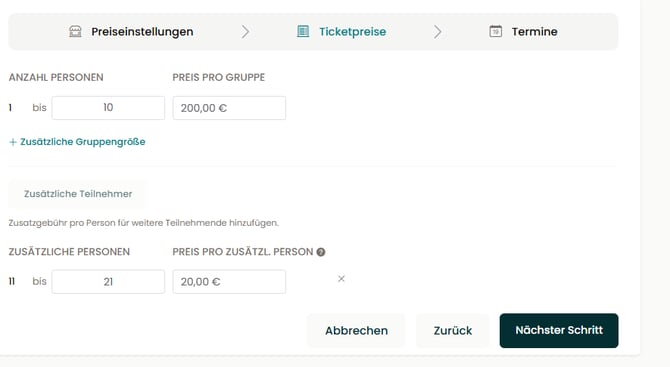
- Booking option – Ticket prices
- Booking option – Dates
- Which pricing model fits my offer?
1) What is a booking option?
The booking option is the core of your offer. This is where you define how much your experience costs and how many people can participate.
Requirement: You have already created an offer.
If not, you can find out here how to create an offer.
A booking option is divided into three sections:
- Pricing model & capacities
- Ticket prices
- Dates
2) How can I create and edit a booking option?
The booking option is created per offer and can be found directly within your offer.
- In the left-hand menu of your partner area, go to “My Offers”.
- Depending on your specialization, select “My Courses”, “My Experiences”, “My Kits”, or “My Tours”.
- Open the offer by clicking “Edit” on the right-hand side.
- Navigate to the step “Booking options”.
- Here you can create a new booking option or edit your existing booking option.
3) Booking option – Pricing settings & capacities
First, you define the framework of your booking option:
Booking option title
Assign a name for internal management.
The title is not visible to customers.
Choose the appropriate pricing model
- Per person pricing: Each participant pays a fixed price
(e.g. €15 per person). - Per group pricing: A flat-rate price for a fixed group size
(e.g. €100 for up to 10 people).
Define the capacity for your offer
- Minimum group size: From how many people should the event take place if it is a closed group?
- Maximum capacity: How many spots are available in total?
Choose a pricing type
- Standard price: One price for all participants.
- Category pricing: Create different prices (e.g. for adults, children, or students).
Here you can also define the age range for each category.
5) Booking option – Dates
In the final step of the booking option, you can add your dates.
In the next article, you will learn how to configure the appropriate dates.
→ Add and manage dates
Would you prefer to work exclusively with booking requests? Then simply skip this step. The request option is automatically available.
You can also make additional settings for requests under “My Account” and the tab “Date Suggestions”.