- What are Add-ons?
- How do I create Add-ons?
- How do I add Add-ons to an event?
- How can customers book Add-ons?
1. What are Add-ons?
Add-ons are optional products or services that customers can add to their booking.
Examples of Add-ons
- Food pairing for a wine tasting
- Beverage package for a cooking class
- Brewery tour as part of a beer tasting
- Extended event duration
Important information
- Add-ons can only be booked if event dates are available.
- When creating an Add-on, you can define whether it should be available for public events, private group events, or both.
- You can also set a minimum number of participants required before the Add-on becomes available, for example only for bookings of five or more people.
2. How do I create Add-ons?
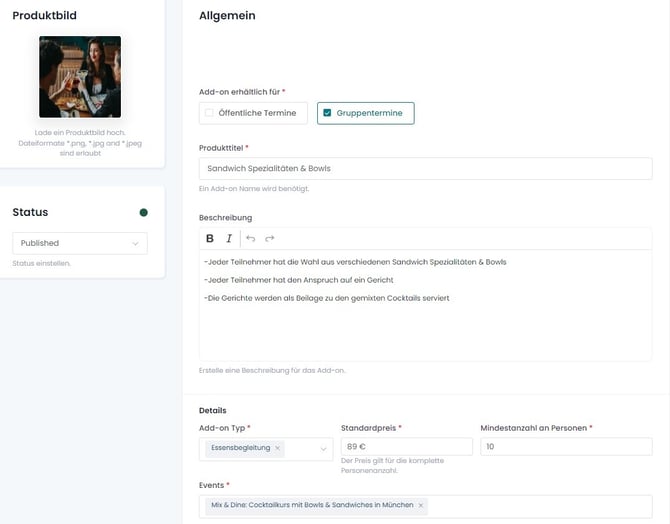
- In your Partner Account, open "My Offers" and select "Add-ons" from the left-hand menu.
- Click "Create Add-on."
- Choose whether the Add-on should be available for public events, private group events, or both.
- Alternatively, you can make the Add-on available only for the entire group booking (group events only) or for individual participants.
- Enter a title and description for the Add-on.
- Select the Add-on type from the dropdown menu, such as food pairing, beverages, or other categories.
- Set the gross price for the Add-on.
- Define the minimum number of participants required to book the Add-on.
- Select the event(s) to which the Add-on should be assigned. You can choose multiple events.
- Upload a suitable product image for the Add-on.
- Change the status to "Published" once you have completed the setup.
- Save your changes. The Add-on is now live and available for booking.
- You can deactivate the Add-on at any time if needed.
3. How do I add Add-ons to an event?
You can assign Add-ons directly while creating an event or add them later through the event settings.
- In your Partner Account, go to "My Offers" and "My Events."
- Select the event and click "Edit."
- Open step 3, "Summary."
- Enable "Would you like to offer additional products (Add-ons)?"
- Use the dropdown menu to select the Add-ons you want to offer for this event.
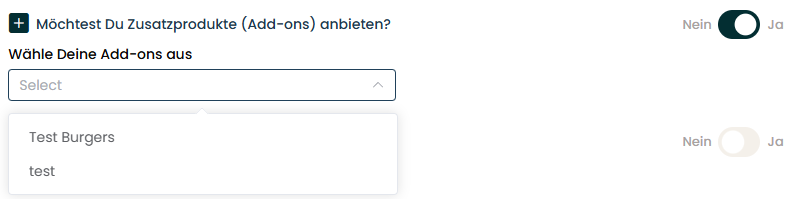
- You can remove Add-ons from this field at any time.
- Save your changes. The Add-ons are now available for customers booking this event.
4. How can customers book Add-ons?
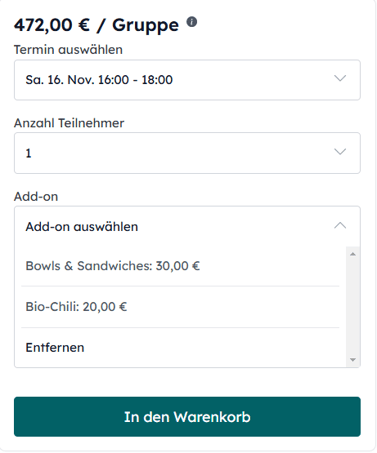
Customers can select available Add-ons directly during the booking process.
The Add-ons are displayed alongside the event date and ticket selection. Customers can choose their preferred Add-ons, add them to the cart together with their tickets, and complete the booking in a single checkout process.
Please note
Add-ons are only available when bookable event dates are available. If no dates are scheduled, customers will not be able to book Add-ons.