
- Manage Your Orders via the Navigation Menu
- Review Your Orders in the Dashboard
1) Manage Your Orders via the Navigation Menu
Step 1: Open Orders
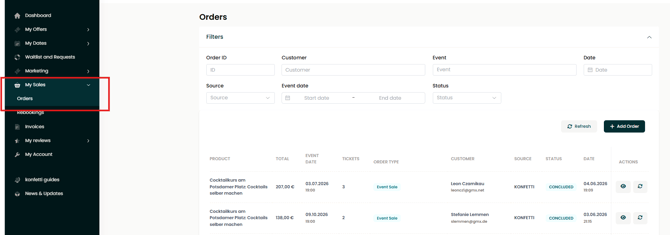
- Click My Sales in the navigation menu.
- The order overview page will open.
Step 2: Filter Your Orders
You can filter your orders by:
- Customer name
- Event title
- Creation date
- Sales source (konfetti or your booking solution)
- Event start and end dates
- Sales status
Step 3: Open an Order
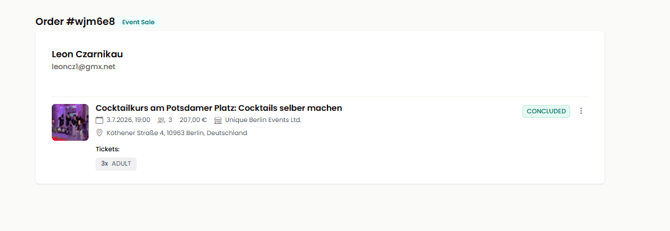
Click "View Order" to open the detailed order page.
Step 4: Review Order Details
The order page contains all important information related to the booking, including:
- Customer information
- Booking status
- Purchased experience or event
- Event date and time
- Number of participants
- Add-ons and additional services
- Order value and payment information
Step 5: Manage the Booking
You can also initiate a rescheduling directly from the order page.
For more information, see Rescheduling & Cancellations.
2) Review Your Orders in the Dashboard
Step 1: Open the Dashboard
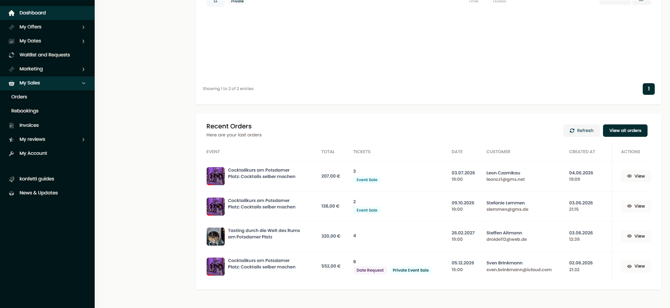
Go to the Dashboard in your Partner Portal and scroll to the bottom of the page.
Step 2: View Recent Orders
There you will find an overview of your most recent orders.
Step 3: Open Order Details
Click "View Order" next to any booking to access the full order details.
The order page will open with the same information and management options described above.