Summarize your article content to let people quickly see their answer is here, and help search engines find it too.
- What is an offer on konfetti?
- Registration in the partner account
- Create an offer with our AI Import
- Create an offer
a. General information
b. Description
c. Summary
d. Booking options
e. Gallery - Publish your offer
1) What is an Offer on konfetti?
At konfetti, you create so-called offers – meaning specific experiences, courses, tours, or kits that are organized by you.
Learn here how to choose the right specialization.
An offer can:
- have multiple dates (e.g. every Sunday at 2:00 PM)
- be created multiple times (e.g. with different locations or variants)
Examples of offers:
- DIY Box
- City tour
- Cocktail course
If you can offer your courses in both German and English, we will take care of the translation for you!
To do this, you only need to define your main language and create the course exclusively in that language.Learn here how it works.
2) Log in to Your Partner Account
- Log in here.
- Forgot your password? No problem – click on “Forgot password” and follow the steps.
- You can change your password at any time under “User Settings”.
- After logging in, you will be taken directly to the dashboard.
3) Create an offer using the AI import
With our new offer creation tool, you can create your new SEO-optimized offer in just one minute.
To do this, simply enter the key details (title, duration, included services, and, if applicable, a rough outline of the process), and our tool will generate a complete offer description for you, saving you up to 20 minutes.
After the tool has generated everything, you can of course still make changes.
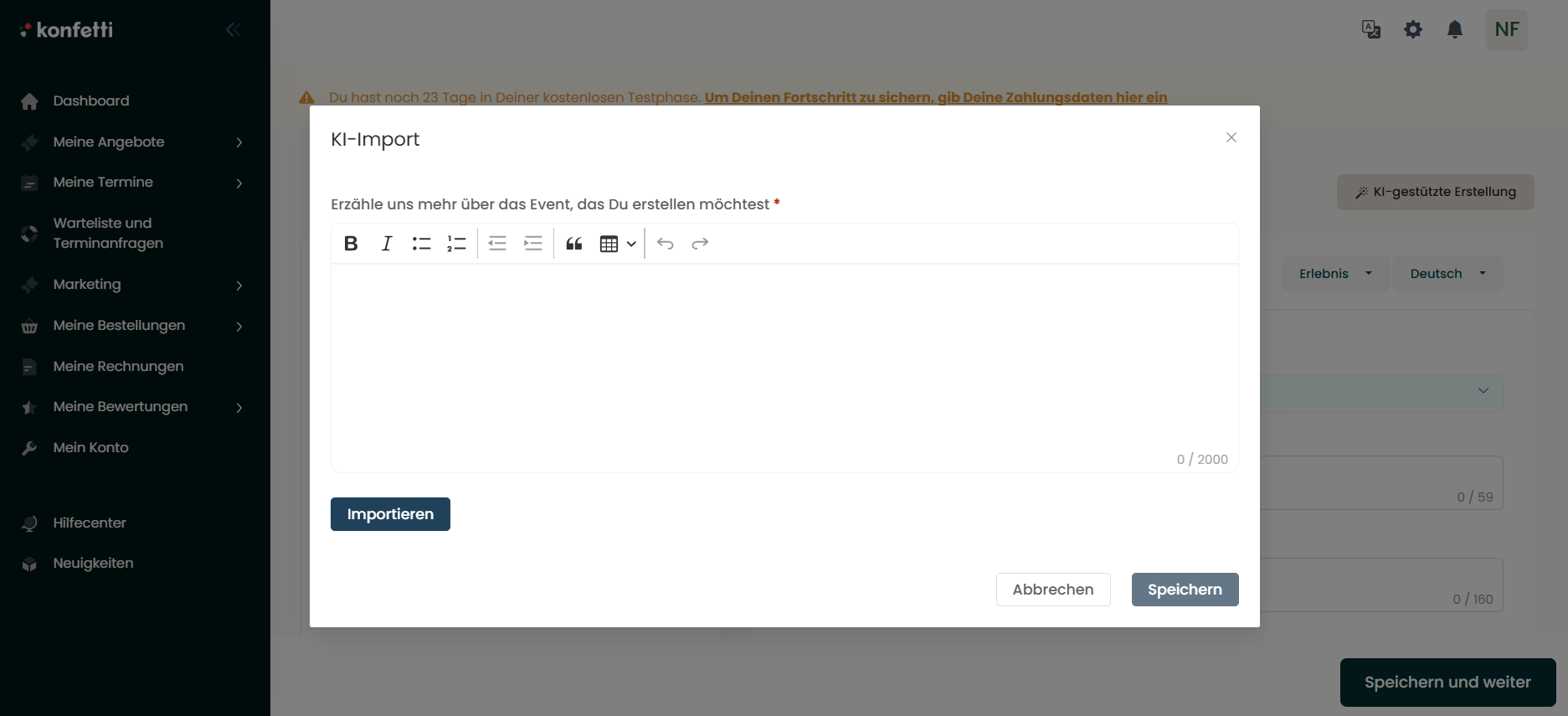
Important:
You must always add your address manually so that the course is not marked as an online event.
4) Add an Offer
You can create your new offer (course, experience, tour, or kit) in two ways:
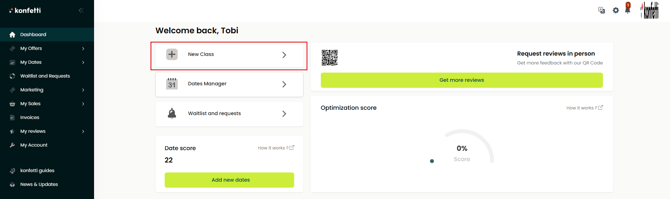
1. Via the Dashboard (quick access)
At the top of the dashboard, click directly on “Add Course”.
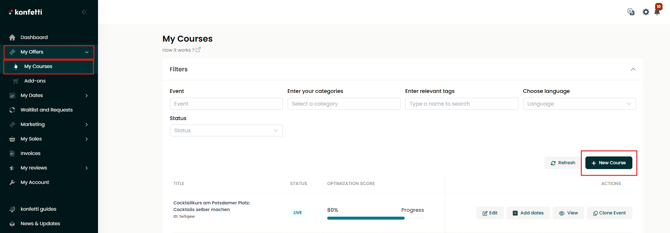
2. Via “My Offers” (full overview)
Alternatively, you can navigate through the side menu:
My Offers → My Courses → Add New Course
Create an Offer
1. General Information
In this step, you define the most important basic information for your offer – such as title, location, language, and target group.
Title & Subtitle
- Title: Short and concise, max. 59 characters.
Example: Indian Cooking Course in Munich: Make Naan Yourself
Use a keyword (e.g. “cooking course”, “pottery”) and include the location. - Avoid mixed languages: Please avoid combinations such as “Wine Tasting mit Freunden”. Stay consistent in either German or English.
- Subtitle (short description): One sentence with a maximum of 160 characters that creates interest and briefly explains what participants can expect.
Language, Duration & Group Size
Define:
- In which language your offer takes place.
- The duration in hours.
Categories & Tags
- Click on “Select” to define suitable categories for your offer (e.g. “Cocktail Course”, “Painting”).
- Multiple categories are possible – this helps users find your offer more easily.
- Categories are structured hierarchically.
Example: Wine Tasting → Tasting → Food & Drinks - Optional: Add tags (e.g. “Team Event Berlin”).
Tags help highlight special use cases or target groups.
Offering courses for children?
Then:
- Select the tag “Courses for Children”
- Include the age group and whether an accompanying adult is required in the description.
Event Location
Choose between:
- On-site (in person), e.g. at your location
- Online
- By arrangement (if you do not have a fixed location)
For “By arrangement”: Inform your customers about the event location via email after booking.
- Enter the address of your location.
Mobile Courses (optional)
If you also offer courses at the customer’s location:
- Activate the “Mobile Course Option” toggle and set it to “Yes”
- Define how many kilometers you are willing to travel (included in the price)
This allows customers to choose directly between your location and their preferred location during booking.
Publication
At the end, choose whether your offer:
- appears only on gokonfetti.com
- or is additionally integrated into your konfetti booking solution
2. Description
In this step, describe your course in a way that helps potential customers immediately understand what it is about – and motivates them to book.
Writing Style & General Tips
- Write directly and personally – address your readers as “you”
- Use a relaxed, informal style
- Recommended length: at least 200 words
- Structure your description into clear sections, preferably with headings or bullet points
💡 Your course description is prominently displayed on the offer page – it is your main sales argument.
Structure of the Course Description
1. Course Content (Introduction)
Start with a short summary:
- What can participants expect?
- What will they learn or experience?
- What is the goal of the course?
2. Course Schedule
- Describe the approximate flow of the course.
- Use bullet points for clarity.
3. Who is the Course Suitable For?
Describe your target group:
- Beginners or advanced participants?
- Individuals, couples, or groups?
- Especially suitable as a team event, bachelor/bachelorette party, etc.?
4. What Is Included?
List all products, materials, and services included in the price.
5. What Should Participants Bring?
💡 This information will also automatically appear in the booking confirmation.
- What should participants bring themselves – or intentionally not bring?
3. Summary
In the summary section, provide potential customers with the most important information again in a short and compact format – clearly visible and easy to scan.
Use clear bullet points instead of long paragraphs.
What Is Included?
List what is included in the price using keywords only.
Please do not repeat the course description text – instead, use comma-separated terms.
Example:
Mix three cocktails, one shot, all utensils, professional guidance
Suitable as a Private Event or Team Event
Show whether your course is especially suitable for groups or specific occasions.
Example:
This cooking course is ideal for team events or bachelor/bachelorette parties.
Location Information
Briefly and precisely describe where your course takes place.
Examples:
- The barista course takes place in a cozy café in Berlin-Neukölln.
- The workshop takes place online via Zoom.
Special Ticket Notice (visible after booking)
Here you can add notes that will only appear in the booking confirmation email.
Example:
Please inform us about any allergies or intolerances at least 7 days before the event.
Additional Products (Add-ons)
You can offer optional additional services or products that customers can add directly during booking.
Examples:
- Food accompaniment
- Extension package
- Accompanying person
- Product to take home (e.g. DIY set, recipe booklet)
More information about add-ons can be found here.
Will a Product Box Be Shipped?
If your participants receive a product box in advance (e.g. for online cooking courses or DIY kits), activate the toggle “Yes”.
This allows customers to enter their shipping address during booking.
4. Booking Options
In this step, you define your prices, capacities, and dates.
- Learn here how to define your prices & capacities
- Learn here everything about dates
5. Gallery
Here you can upload images and one video to present your course in the best possible way.
Good visual content significantly increases booking chances – so take time to make a strong selection.
Uploading Images – What to Pay Attention To
- Aspect ratio 4:3
This format works best in the konfetti layout. - Quality matters
Upload at least 5 well-lit, sharp images – up to 10 images are possible. - Naturalness over advertising
No logos, text overlays, or heavy filters. - Show real scenes and moments from your course.
- Show what your course offers
Your images should reflect the content, atmosphere, and flow of your offer so interested customers immediately get an authentic impression.
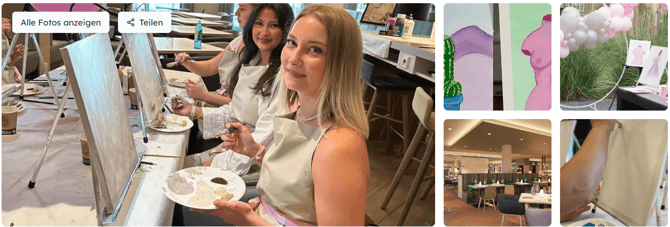
How Our Image Gallery Works
Your gallery consists of:
- one main image (displayed first)
- up to 4 gallery images
- an expanded view (“Show all photos”)
💡 Tip: You can change the order of your images using the arrow icon and intentionally control which image customers see first.